
Anthropic just shipped a meaningful upgrade to Claude's Microsoft Office add-ins — and if you use Excel and PowerPoint together in your work, this one is worth paying attention to.
The original Claude for Excel and Claude for PowerPoint add-ins let you use AI directly inside both apps. Useful, but separate. The March 2026 update changes that: Claude now maintains shared context across both apps simultaneously. Data from your spreadsheet flows into your presentation without you having to re-explain it. The same conversation thread, the same context, across both files at once.
That sounds small. It isn't.
What Just Changed (March 2026)
Two things shipped in this update that matter for business owners and their teams:
1. Cross-app context. Claude can now read and work across multiple open Excel and PowerPoint files in a single conversation. You don't have to close one app and open another, and you don't have to paste data between them. Claude holds the full picture.
2. Saveable Skills. When your team figures out the right way to run a process — a variance analysis format, a monthly report structure, a pitch deck template — you can now save that workflow as a one-click action. Anyone on the team can run it on their next project without rebuilding it from scratch.
Anthropic shipped two pre-built skills to start: an Excel formula auditor that checks for errors and balance-sheet integrity, and a PowerPoint skill that generates competitive landscape decks. More are coming.
What Claude Can Do in Excel
Before this update, Claude in Excel was already more useful than most people realized. Here's what it handles:
- Formula writing from plain English. Describe what you want to calculate and Claude writes the formula. No Googling, no trial and error.
- Formula explanation. Paste in a complex formula you inherited from someone else and Claude explains what it does, cell by cell.
- Multi-tab workbook analysis. Claude reads across multiple tabs in the same workbook and synthesizes what's happening. Useful for monthly P&L files, pipeline trackers, and anything with linked sheets.
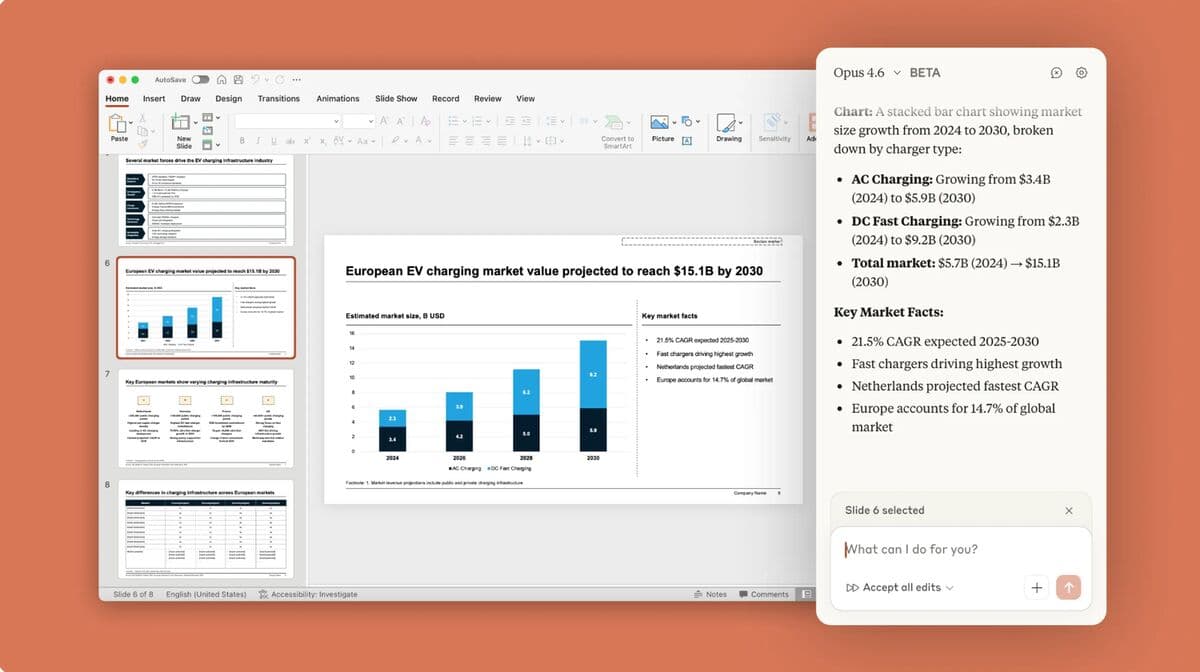
- Pivot table editing and chart modifications. Ask for a chart by the charger type, sorted by CAGR — Claude adjusts the existing chart instead of making you redo it.
- Conditional formatting. Claude applies formatting rules based on your instructions: flag anything over budget in red, highlight the top-10 performers, etc.
- Data cleaning. Standardize inconsistent formatting, remove duplicates, split columns — all from a plain English request.
What's new is that it now does all of this with awareness of what you have open in PowerPoint at the same time.
What Claude Can Do in PowerPoint
Claude for PowerPoint is built around one key design decision: it reads your slide master before doing anything. That means it won't ignore your brand colors, change your fonts, or jam in a layout that doesn't match your existing deck. It works within your template.
What it can do:
- Generate new slides. Give Claude a topic, a data source, or a brief and it builds slides using your existing layouts and formatting.
- Edit existing slides. Ask for targeted changes — rewrite the headline, make the bullet points shorter, move this data into a table — without touching the rest of the deck.
- Build full presentations from a description. “Create a 10-slide deck on our Q1 performance for a board audience” produces a structured presentation with the right sections, headlines, and content hierarchy.
- Create native charts and diagrams. Claude doesn't insert screenshots. It creates actual PowerPoint objects that you can continue editing after Claude is done.
- Write speaker notes. Add detailed notes under each slide automatically, based on the slide content.
You can choose between Sonnet 4.5 and Opus 4.6 depending on the task. Opus 4.6 is better for complex restructuring — rebuilding a whole section of a deck, synthesizing multiple data sources into a narrative. Sonnet 4.5 is faster for targeted edits.
Cross-App Intelligence in Practice
Here's where this gets practically useful. Before this update, a typical workflow looked like this:
- Build your financial model in Excel
- Export or screenshot the key numbers
- Open PowerPoint, paste the data
- Ask Claude (separately) to write slide content based on those numbers
- Repeat every time the numbers changed
Now it looks like this:
- Have both files open
- Ask Claude: “Pull the revenue figures from my workbook and build a valuation summary slide for the investor deck”
- Done
Anthropic demonstrated this with a financial analyst use case: pull comparable company financials from an open Excel workbook, construct a trading comparables table, insert the valuation summary into a presentation, and draft the accompanying narrative — all in one continuous conversation, no context-switching.
The same pattern applies to non-finance work. If you run a service business, you might have a client performance tracker in Excel and a monthly review template in PowerPoint. Instead of manually pulling this month's numbers into the slides, Claude pulls them automatically because it can see both files.
The Skills Feature: Workflows That Scale
Skills are the part of this update most businesses will underestimate.
The problem with AI tools at work isn't getting them to do a task once — it's getting your team to do it the same way every time. Skills solve that. When someone figures out the right way to run a process using Claude (the right prompts, the right sequence, the right format), they can save that as a skill. From then on, anyone on the team runs the same workflow with one click.
The pre-built skills Anthropic shipped are good starting points:
- Excel: Formula audit. Analyzes a workbook for formula errors and balance-sheet integrity. Useful for anyone working with financial models where a broken formula can cascade into wrong numbers everywhere.
- PowerPoint: Competitive landscape deck. Generates a structured competitive analysis presentation from a brief. Saves the 2-3 hours most teams spend on this before every sales meeting or board presentation.
The more interesting use is building your own. If your business has a monthly reporting process, a proposal format, or a client review deck structure — document it as a skill once, and your whole team uses it consistently.
How to Install Both Add-Ins
Both add-ins are available through the Microsoft 365 marketplace. You need a Claude Pro, Max, Team, or Enterprise subscription to use them.
For individual users:
- Search for “Claude by Anthropic” in the Microsoft 365 marketplace (appsource.microsoft.com)
- Install separately for Excel and PowerPoint
- Open either app, activate the add-in from the Home ribbon
- Sign in with your Claude account
For teams and organizations:
- Go to Microsoft 365 Admin Center
- Navigate to Settings → Integrated Apps → Add-ins
- Search “Claude by Anthropic” for each app
- Deploy to your organization or specific users
Enterprise customers also have the option to route through Amazon Bedrock, Google Cloud Vertex AI, or Microsoft Foundry if you have existing data governance requirements around which cloud your AI calls go through.
Supported versions: PowerPoint for web, Windows (build 16.0.13127.20296 or later), and Mac (version 16.46 or later). Same requirements apply for Excel.
Who This Is Actually For
Claude in Excel and PowerPoint isn't for developers. It's for the people who already spend their days in those apps and have always wished someone else would do the tedious parts.
If you're running a business and you regularly:
- Build reports that pull from spreadsheets into slide decks
- Update the same presentation template monthly with new numbers
- Spend time building charts that could be built from data you already have
- Have a team member who owns “the Excel model” and another who owns “the PowerPoint” — and they have to sync manually
...then this is worth setting up.
The bigger picture: AI adoption has been hardest in organizations where people are already busy and don't want to learn a new tool. The reason Claude in Excel matters isn't Excel specifically — it's that AI is now embedded in the tool your team already opens every morning. The friction of "go to Claude.ai and explain everything" is gone. It's just there.
That's how AI adoption actually happens at scale in small and mid-size businesses. Not from the top down, not from a training mandate — from removing the reason not to use it.

Elevated AI Consulting
Sam Irizarry is the founder of Elevated AI Consulting, helping businesses grow through strategic marketing and AI-powered solutions. With 12+ years of experience, Sam specializes in local SEO, web design, AI integration, and marketing strategy.
Learn more about us →